With an Infographic and Cheatsheet
Oct 26 2020 | Mike Cronin | Link
Docker can be confusing when you’re getting started. Even after you watch a few tutorials, its terminology can still be unclear. This article is intended for people who have installed Docker and played around a bit, but could use some clarification. We’re going to make all three core pieces of Docker and give some helpful other commands. It’s going to cover a lot, be sure to click the links.
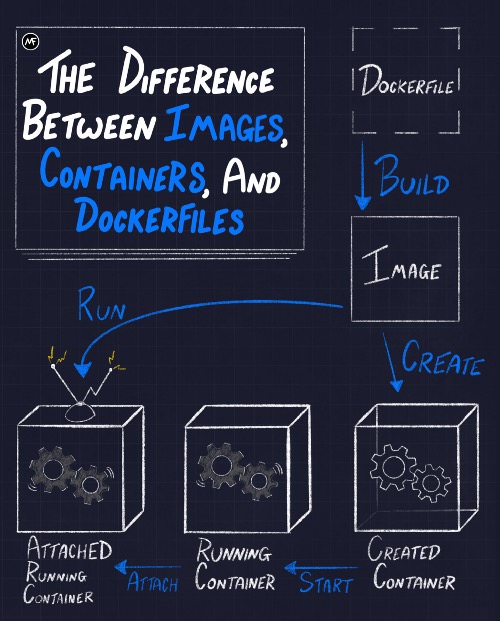
We’re going to step through every piece of this graphic, but it’s
helpful to see the three main stages upfront as a roadmap. In short,
Dockerfiles are used to build
images. Images are used to create
containers. You then have to start and
attach to the containers. The
run command allows you to combine the create,
start, and attach commands
all at once.
Scroll to the end for a cheatsheet of every command we’ll use.
In order for our project to do something, we’re going to make a
server.jsfile that sends a simple text response. This
is the only Node code in the tutorial. You do not need to
know Node.
const http = require("http");const app = (req, res) => {
  console.log("ping!");
  res.end("Hello there.", "utf-8");
}http.createServer(app).listen(3000);
console.log("server started");A Dockerfile is simply a text file with instructions that Docker will
interpret to make an image. It is relatively short most of the time and
primarily consists of individual lines that build on one another. It is
expected to be called Dockerfile (case sensitive) and does
not have a file extension. Here is a simple example:
FROM node:12-slimCOPY server.js server.jsCMD ["node", "server.js"].
This isn’t a tutorial on how
to write Dockerfiles, but let’s talk about this for a second. What
our Dockerfile is doing is pulling down the Node image called
node:12-slim FROM DockerHub (or your
machine) so we can build our custom image on top of it. DockerHub is an
online repository of images; kind of like NPM or Pip. Then we’re
COPYing our server.js into the environment so
our eventual container will have access to it. The last thing in a
Dockerfile is usually a CMD (command) for the container to
run once it’s made. In our case it’s going to start our
server.js.
NOTE: It is crucial that each piece the CMD
array is surrounded by double
quotes or else it won’t work properly.
The way to build an image from a Dockerfile is to run
build on the command line. The following command assumes
we’re in the same directory as our server.js and
Dockerfile: docker build -t my-node-img ..
The . tells Docker to build from the
Dockerfile in the current directory. As a bonus, we gave
our image a tag of my-node-img. This will help us specify
which image we are using without having to use an id. Here’s a guide
on image tags. You should know that you can use
image and container IDs instead of tags and names, but words are easier
to remember. Building can take a minute, but once done, we will have our
image! See it by running:
docker image ls my-node-img# to see all images on your machine
docker image lsIf a Dockerfile is a set of instructions used to create an image, it’s helpful to think that an image is just a template used to create a container. An image is responsible for setting up the application and environment that will exist inside the container. The important thing to understand is that images are read-only. You do not make edits to an image, you make edits to the Dockerfile and then build a new image.
One of the features that makes Docker so powerful is that images can be layered. In every Dockerfile, you’ll be pulling down a base image to start from. And those base images are probably built from others, it’s images all the way down. This layering effect helps with things like caching for CI/CD purposes. But anyway, images aren’t good for much besides creating containers, so let’s do that!
Finally, we’re getting to the good stuff. This is technically all you need to do to create a container:
# don't type this yet
docker create my-node-img However, for our server example, that’s kind of
useless. We’ll need to add some flags:
docker create --name my-app --init -p 3000:3000 my-node-img.
The --name lets us assign our own name. Docker will
autogenerate a name for the container if we don’t, but they’re long and
terrible. The --init means we’re using the Tini package that comes built
in with Docker. It handles ctrl-C and keeps us from getting
stuck in our container. Next up is -p, which connects our
host machine’s port 3000 to the Docker container’s port 3000. Without
this, we wouldn’t be able to connect to our server. The last argument is
the actual image tag that will create our container.
The container is what actually runs our app. Think of the container like an isolated Linux box. It’s essentially a lighter weight virtual machine. The point of having a container is standardization. An application only has to care about the container it’s run in. No more, “But it works on my machine!” If an app runs in a container, it will work the same way no matter where the container itself is hosted. This makes both local development and production deployments much, much easier.
All create did was create the container, it
didn’t start it. You can still see that it exists
with docker ps and some extra filters:
docker ps -a --filter "name=my-app".
But, if you go to localhost:3000, nothing happens. Our container
still isn’t active, it
just…exists; its status is merely “created.”
start it by running: docker start my-app.
Now when you go to localhost:3000, it responds! Since our container
is officially “running” we can also see it with a regular
docker ps, which by default only shows running
containers.
How do we see our container’s outputs and logs? Well, there’s
technically a command you can run, but hang on before
typing it: docker attach my-app.
Be warned: if you run attach, your terminal is going to
get stuck displaying the container logs. Worse, if you attach and then
ctrl-C to get out, it will actually stop the
container on exit. Or worse, it will just ignore the ctrl-C and trap
your terminal. If that ever happens to you, you’ll have to open a new
terminal and stop the container (more on that later). That’s why in your
applications you should handle the SIGTERM or use the Tini package like
we have in our example. A better way to see output is the
Docker logs command:
docker logs -f my-app.
That will show you the logs as they print from your container.
ctrl-Cto get out of this with no interruptions to your
container. If you just want the logs print out statically, omit the
-f flag.
If you want to go into the container to explore the file system,
you’d want to run this: docker exec -it my-app bash.
exec executes
any command on a running container. If it’s going to be an
interactive one, like opening a bash shell, you must include
the -it flags.
Also, heads up that some containers may not have bash
installed, so you might need to try sh or ash
if it doesn’t work.
As you remember with the infographic, run is a shortcut
that takes care of create, start, and
attach all at once:
docker run --name my-app -p 3000:3000 --init --rm my-node-img.
However, like we talked about, attaching takes up the terminal, which
is probably not what you want. Run the command with the -d
flag (detached mode) so the container goes in the background:
docker run -d --name my-app -p 3000:3000 --init --rm my-node-img.
All the options are still doing the same thing they were doing with
create, with the exception of the new --rm
flag. This simply removes our container from our machine when we stop
the container. That will allow you to run the same command without name
space issues; it’s mainly for practicing.
Of course, you will want to stop and remove old/stuck containers, and that’s luckily straightforward:
docker stop my-app
docker rm my-app
To stop all running containers:
docker stop $(docker ps -q).
The subshell
is using the -q (quiet) flag to only return the container
ids, which are then fed into the stop command.
run doesn’t actually need the image to be on the host
machine. If Docker can’t find the specified image locally, it will try
to find it on DockerHub. This is useful when paired with another feature
of run: it can execute a command on the newly created
container. For example, you could spin up a Node image and then start it
in bash instead of the default Node repl:
docker run -it node:12-slim bash.
The command to run just goes after the image tag. Remember, you only
need the -it flags if the command is interactive. If you
just wanted to see the Linux version for example, no flags are
necessary:
$ docker run node:12-slim cat /etc/issue
>>> Debian GNU/Linux 9We’ve had one container yes, but what about a second container? That’s another powerful feature of Docker: you can easily network containers together. But once you have 2 or more containers to manage, I wouldn’t recommended that you try to control them from the command line. No, what you’ll want to start using is a container orchestration system, usually it’ll be Docker Compose for local development and Kubernetes for actual production. I recommend watching this video to pick up the basics of Compose and this series to take a deeper dive with Kubernetes
Happy coding everyone, Mike.
# Build your image
docker build -t my-node-img .# Show specific image
docker image ls my-node-img# to see all images on your machine
docker image ls# Create a container with the tiny package, a name, and port
docker create --init --name my-app -p 3000:3000 my-node-img# Show newly created container
docker ps -a --filter "name=my-app"# Start your container
docker start my-app# Attach to container (not recommended)
docker attach my-app# See containers logs (recommended)
docker logs -f my-app# access container's system
docker exec -it my-app bash# using the run shortcut
docker run --name my-app -p 3000:3000 -d --init --rm my-node-img# Stop a running container
docker stop my-app# Remove a non-running container
docker rm my-app# see all running containers
docker ps# stop all running containers
docker stop $(docker ps -q)# Check version of linux for container
docker run node:12-slim cat /etc/issue